
App Blocker for Kids: Block TikTok, Games and Adult Apps
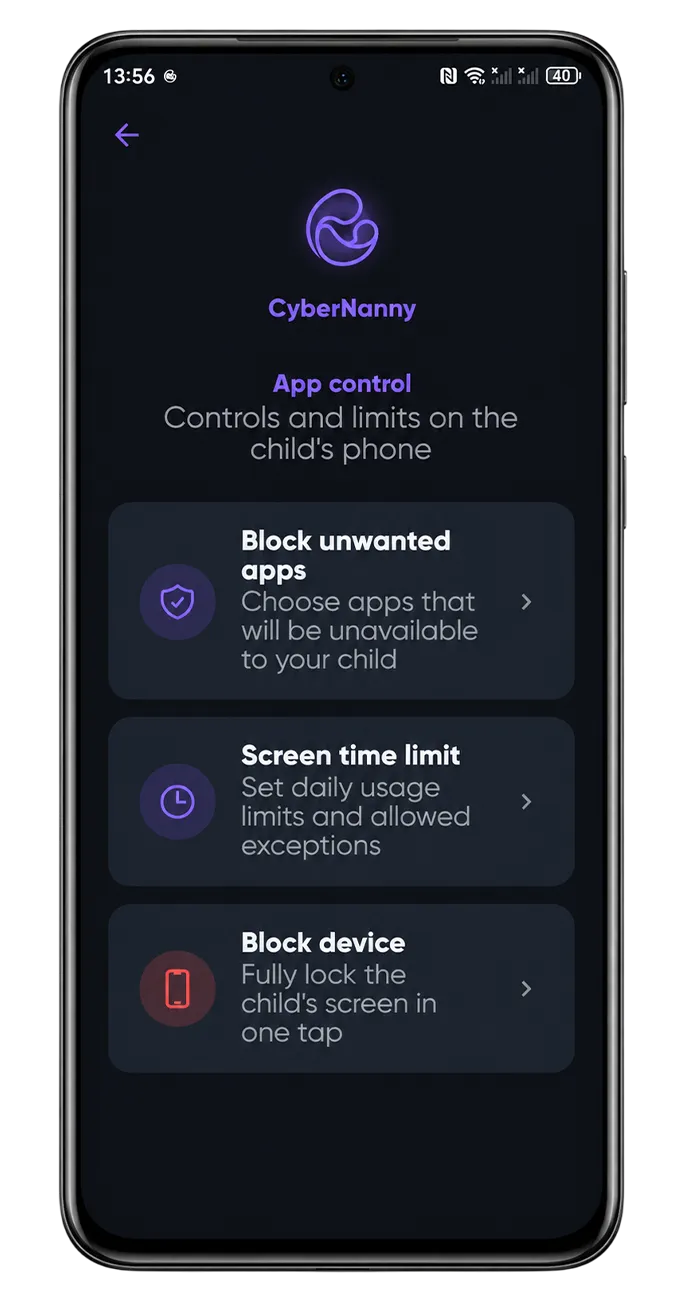
It usually starts with one specific app. Your child disappears into TikTok until one in the morning, or a game turns out to have an open chat full of adult strangers, or something appears on the phone that you would clearly not have approved.
Deleting it by force is pointless — it will be reinstalled within ten minutes. Taking the phone away entirely is excessive: homework, classmates and your own calls live there too. Blocking solves the problem precisely: exactly what interferes gets closed, everything else keeps working.
- The dashboard lists every app on your child's phone — including ones you did not know about.
- Block individually, by category (games, social, 18+) or on a schedule.
- A time limit often works better than an outright ban.
- New installs are visible: you get a notification, and the app store itself can be blocked.
- The app is protected from removal — it cannot be uninstalled without a parent PIN.
Start with what is installed
The first useful step is simply reading the list of apps on your child's phone. Almost every time there are two or three unfamiliar icons: anonymous messengers, games with open chat, dating apps with a nominal age gate.
You see the name, the icon, the install date and how much time your child spent inside. That is enough to decide: block, limit, or just ask what it is.
One-tap blocking
Every app has a toggle. Switch it on and the app stops opening on your child's phone — they see a lock screen when they try. Changes apply immediately, no reboot needed.
The most commonly blocked categories:
- TikTok and short-video apps — because of the feed you cannot climb out of and recommendations nobody supervises.
- Games with open chat — Roblox, Fortnite, Among Us. The danger is rarely the game itself; it is strangers in the chat. See our reviews of popular kids' games.
- The app store — so nothing new appears without a conversation.
- The browser — when you need a strict mode during school hours.
Categories and schedules
You do not have to go app by app. A category closes a whole group at once: all games, all social media, everything rated 18+. A new app from that category falls under the rule automatically, even if your child installs it tomorrow.
Schedules add a time dimension: games available after 16:00, social media closed during lessons, nothing but calls at night. The rule enforces itself.
Limits often beat bans
A total ban triggers a challenge: a teenager starts hunting for workarounds and loses trust in you along the way. A limit reads differently — it is a frame inside which they are in charge.
In practice, "one hour of gaming a day, spend it as you like" produces far fewer conflicts than "no games", with the same result in hours. Save outright bans for genuinely unsuitable content: age-rated apps, anonymous chats, dating. More on setting time limits on the screen time page.
New installs under control
When your child installs something new, you get a notification with the name and category. Then you decide: allow, cap with a limit, or block. If you prefer full order, block the app store itself — then every installation goes through a conversation.
Try CyberNanny for free
App blocking, categories, schedules and new-install alerts are in the free plan. Android support, setup in two minutes.
Get the appIf your child tries to get around it
The standard attempts are well known: delete the control app, reset settings, use the browser version of a blocked network, turn the clock back. The first two are closed by removal protection and the parent PIN, clock changes are logged, and browser versions are handled by the web filter.
But if bypass attempts become systematic, the technical side is secondary. It is a signal that your child finds the agreement unfair, and the rules are worth revisiting together — otherwise the arms race never ends.
FAQ
How do I block TikTok on my child's phone?
Install CyberNanny on your child's device, open the app list in the parent dashboard and switch the toggle next to TikTok. It stops launching immediately. You can also set a limit instead of a ban — for example 30 minutes a day.
Can I block a game only during school hours?
Yes, that is what schedules are for: games unavailable from 8:30 to 15:00 and after 22:00, open as usual the rest of the time.
What does my child see when an app is blocked?
A lock screen with a clear message — not an error and not a mysterious crash. We deliberately do not disguise blocking: hidden restrictions damage trust faster than the restrictions themselves.
Can I prevent new app installations?
Yes, the app store can be blocked like any other app. If a full ban feels excessive, leave it open — you will still receive notifications about new installs.
Can my child uninstall the control app itself?
No. Removal protection is part of the free plan: CyberNanny cannot be uninstalled without a parent PIN, and attempts are reported to you.
Does app blocking work on iPhone?
Partly: iOS restricts management of third-party apps, so precise per-app blocking is available on Android. On iPhone, restrictions work through profiles and Apple's built-in tools.