
Screen Time Control: Limits, Schedules and Bedtime Without Fights
"Five more minutes" is the sentence that starts the same evening argument in thousands of families. The parent takes the phone, the child sulks, both feel bad, and tomorrow it repeats. The problem is not willpower — it is that arguing with a person is much harder than following a rule agreed in advance.
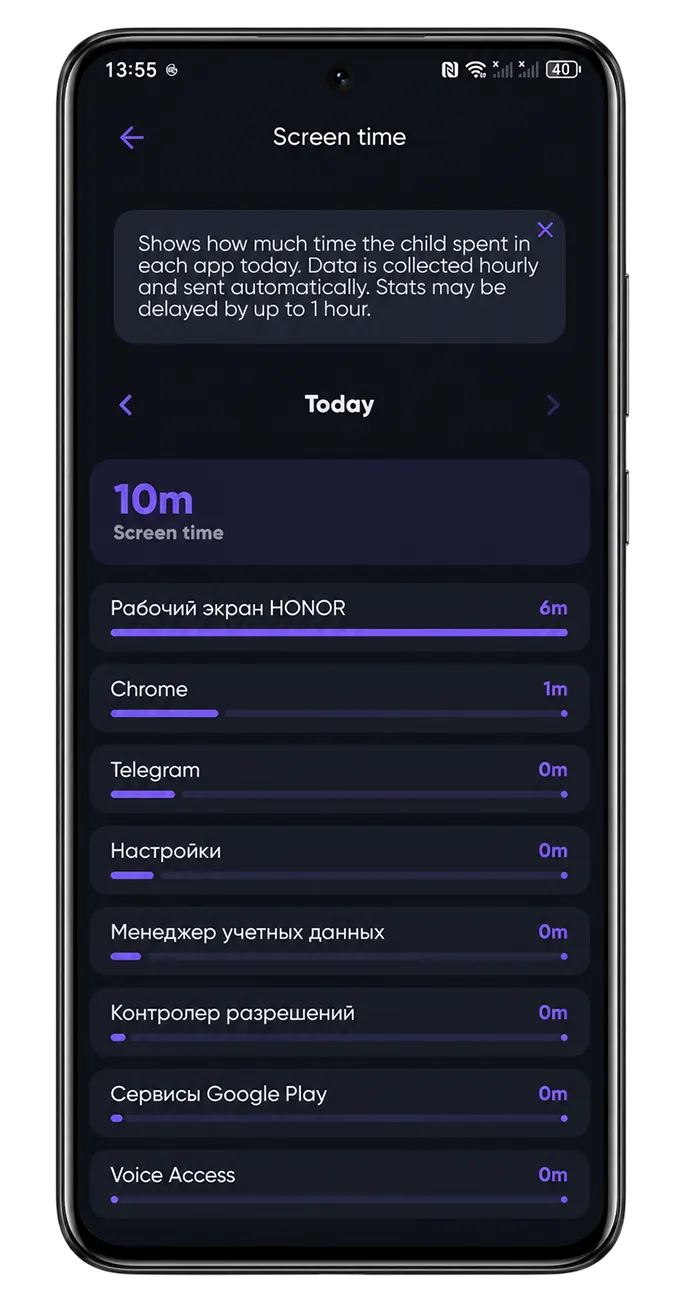
Screen time control in CyberNanny is built around that idea. You set limits and a schedule once; after that the phone locks itself, without your involvement and without you playing the villain. And so the rules are based on reality rather than guesswork, the app first shows what actually happens: how much time goes where.
- Statistics first, limits second: see exactly how long each app was used today and this week.
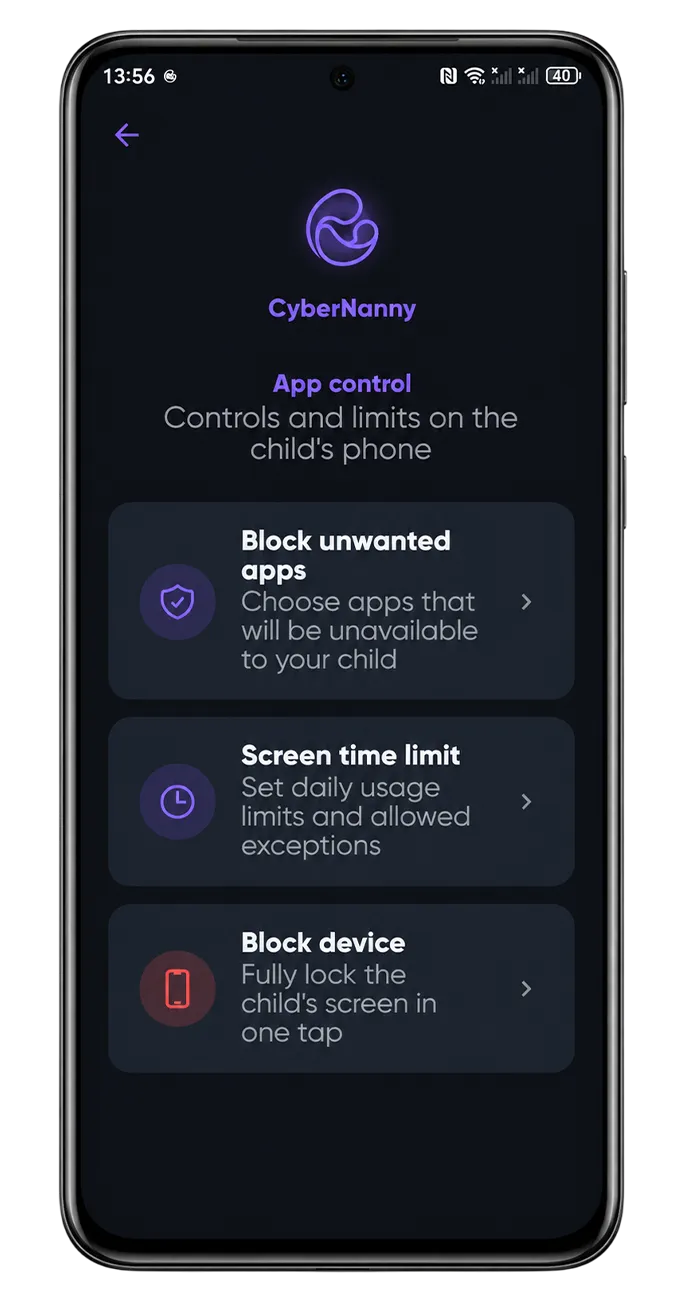
- Limits can apply to the whole phone or to specific apps such as games and social media.
- Schedules lock the phone during lessons and at night — the agreement enforces itself.
- A one-tap Pause locks the device right now: dinner, a conversation, guests.
- The AI Advisor suggests age-appropriate limits and helps you word the conversation.
How much screen time is normal by age
There is no universal number, but the reference points most paediatricians and psychologists work with look roughly like this:
- Ages 3–6 — up to an hour a day, ideally alongside an adult.
- Ages 7–10 — 1 to 1.5 hours of entertainment screen time on school days, more at weekends.
- Ages 11–14 — around 2 hours of entertainment, excluding schoolwork; no screens in the hour before sleep matters more than the total.
- Ages 15–17 — hard limits stop working; agreements and a night mode do.
Structure matters more than the number. Two hours of gaming right before bed does more damage than the same two hours spread across the day. More on this in our screen time by age guide.
Per-app limits, not just the whole phone
A single device-wide limit is a blunt instrument: it catches the messaging app your child uses for homework along with the games. So limits here are targeted.
A typical working setup: games one hour a day, social media and video one hour, messaging and school apps unlimited. Your child decides whether to spend the gaming hour in the morning or the evening — and that feels like freedom of choice rather than punishment.
When the limit runs out the app closes with a clear message, not a mysterious failure. The remaining time is visible on the child's side too, which teaches planning instead of producing surprise anger.
School and bedtime schedules
Schedules are the most underrated feature and the most effective one. You define intervals when the phone locks automatically:
- School hours — only calls and school apps between 8:30 and 13:30.
- Homework — an hour without social media and games.
- Night mode — the phone is unavailable from 22:00 to 07:00. This is not about control but about sleep: screen light and endless feeds directly damage rest, and a tired teenager learns worse and copes worse.
Calls to parents stay available at all times — a lock should never prevent your child from reaching you.
Agreeing instead of enforcing: the AI Advisor
This is where CyberNanny differs from the rest. Family Link, Kaspersky Safe Kids and Qustodio hand you a chart and leave you alone with it.
The AI Advisor looks at your child's actual statistics and answers in plain language: whether three hours a day is normal at twelve, whether a weekend spike is worth worrying about, and how to propose a limit so a teenager does not hear it as a punishment. You can ask directly — "how do I tell my son the phone goes off at 22:00 without starting a fight?" — and get wording, not a lecture about screens.
See how the AI Advisor works and practical tactics in limiting screen time without tantrums.
Try CyberNanny for free
Screen time statistics, per-app limits, schedules and one-tap Pause are in the free plan. Setup takes two minutes.
Get the appFAQ
Can my child bypass the screen time limit?
The app is protected from removal and from resetting settings without a parent PIN, and attempts to change system time are logged. Teenage ingenuity cannot be ruled out entirely, but the simple routes are closed and you will know about attempts.
Does it lock the whole phone or only apps?
Whichever you configure. You can limit specific apps and categories, or lock the device entirely during sleep hours. Calls to parents remain available in every mode.
Does screen time control work on iPhone?
Yes, with a caveat: iOS limits what third-party apps can do, so some features are softer on iPhone. The fullest control is available on Android.
Can my child see how much time is left?
Yes, the remaining time is shown in the child app. That is deliberate — an unexpected lock provokes anger, a visible counter teaches planning.
Is screen time included in the free plan?
Yes. Statistics, limits, schedules and Pause are free with no time limit. PRO extends reports and removes AI Advisor request limits.