
Background Settings by Phone Brand
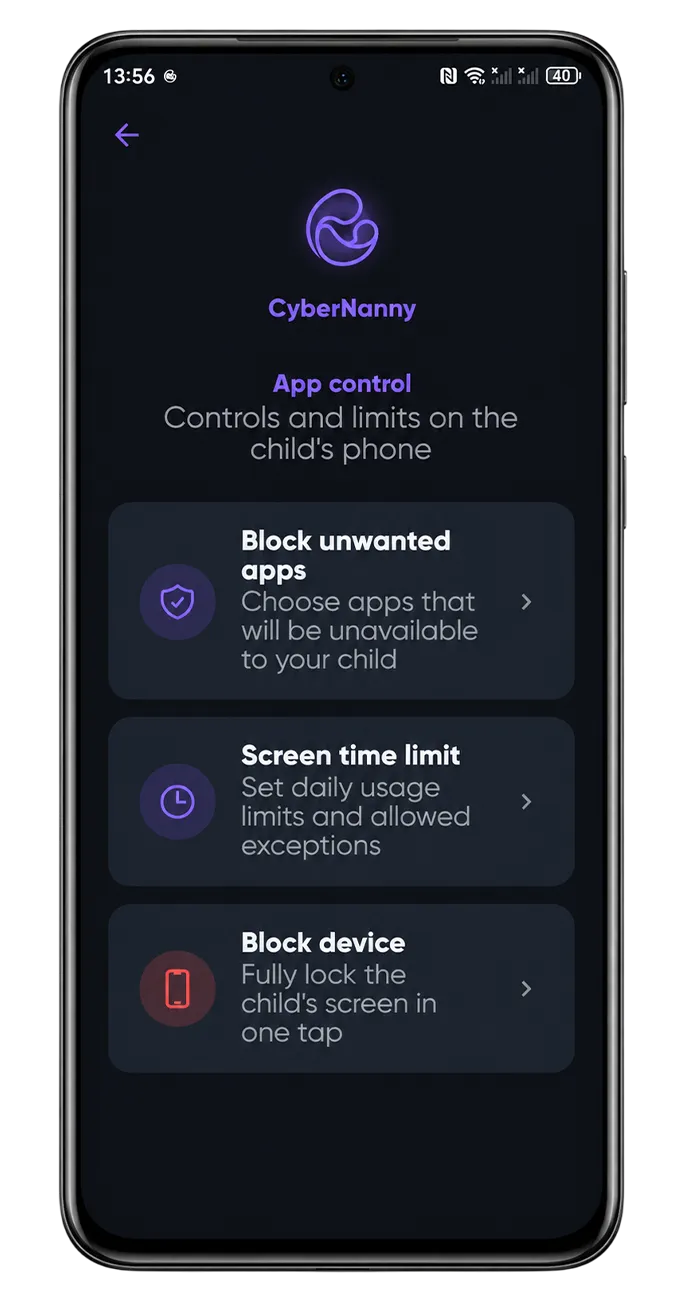
Each Android skin unloads background apps differently. Set this once on your child's phone and the app stops dropping out.
Xiaomi, Redmi and POCO
- Settings → Apps → Manage apps → CyberNanny → enable Autostart.
- In the same card: Battery saver → No restrictions.
- Recent apps → pull the card down → tap the padlock.
- Settings → Battery → turn off battery saver or add the app to exceptions.
MIUI and HyperOS are the strictest skins — without these four steps the app will not survive.
Samsung
- Settings → Device care → Battery → Background usage limits — make sure CyberNanny is not in "Sleeping apps" or "Deep sleeping apps".
- Settings → Apps → CyberNanny → Battery → Unrestricted.
- Device care → Battery → turn off Adaptive power saving.
Huawei and Honor
- Settings → Battery → App launch → switch CyberNanny to manual and enable all three: auto-launch, secondary launch and run in background.
- Recent apps → tap the padlock on the card.
- Settings → Battery → More settings → disable power optimisation for the app.
App launch is the decisive setting here — without it the others do nothing.
realme, Tecno and Infinix
- Settings → Apps → App management → enable autostart.
- In the app card, allow background activity after screen lock.
- Lock the app in the recent apps list.
- Add CyberNanny to the exception list of the built-in memory cleaner or "phone manager".
Verify
Lock the phone for an hour without opening the app, then check the last update time in the dashboard. Background mechanics are explained in why the app stops sending data.