
How to Install Parental Control on Android
The app goes on two phones: yours in Parent mode and your child's in Child mode. It is the same app — the mode is chosen at first launch.
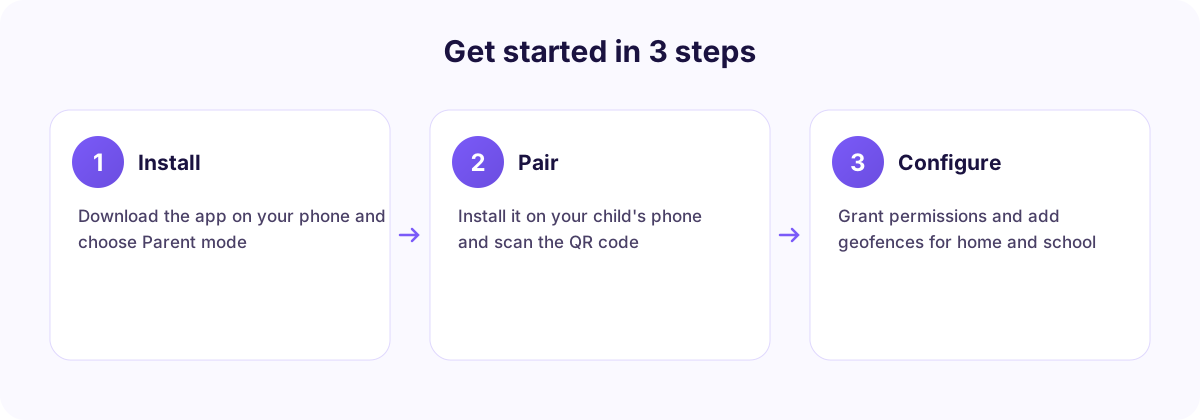
Step 1. Install on your phone
Download CyberNanny from Google Play or as a direct APK from our site — see all download options. Launch it, choose Parent and register.
Step 2. Create a child profile
Enter a name and age. Age affects AI Advisor recommendations and web filter presets.
Step 3. Install on your child's phone
Same app, choose Child mode, then scan the QR code from your dashboard. No logins or passwords are typed on the child's device.
Step 4. Grant permissions
This is the step that decides whether anything works at all.
- Location — "Allow all the time", not "only while using".
- Notification access — required for messengers and AI alerts.
- Accessibility service — required for app blocking.
- Microphone — only if you plan to use ambient sound.
- No battery restrictions — critical.
The dashboard highlights any permission that has not been granted.
Step 5. Confirm it works
Open the map in your dashboard. If your child's position appears and the timestamp updates, setup is complete. Then add geofences and a schedule.
If data stops arriving
On Xiaomi, Samsung, Honor, Huawei, realme, Tecno and Infinix the system aggressively unloads background apps. Fix it once — see background settings by brand.