
How to Install Parental Control on iPhone
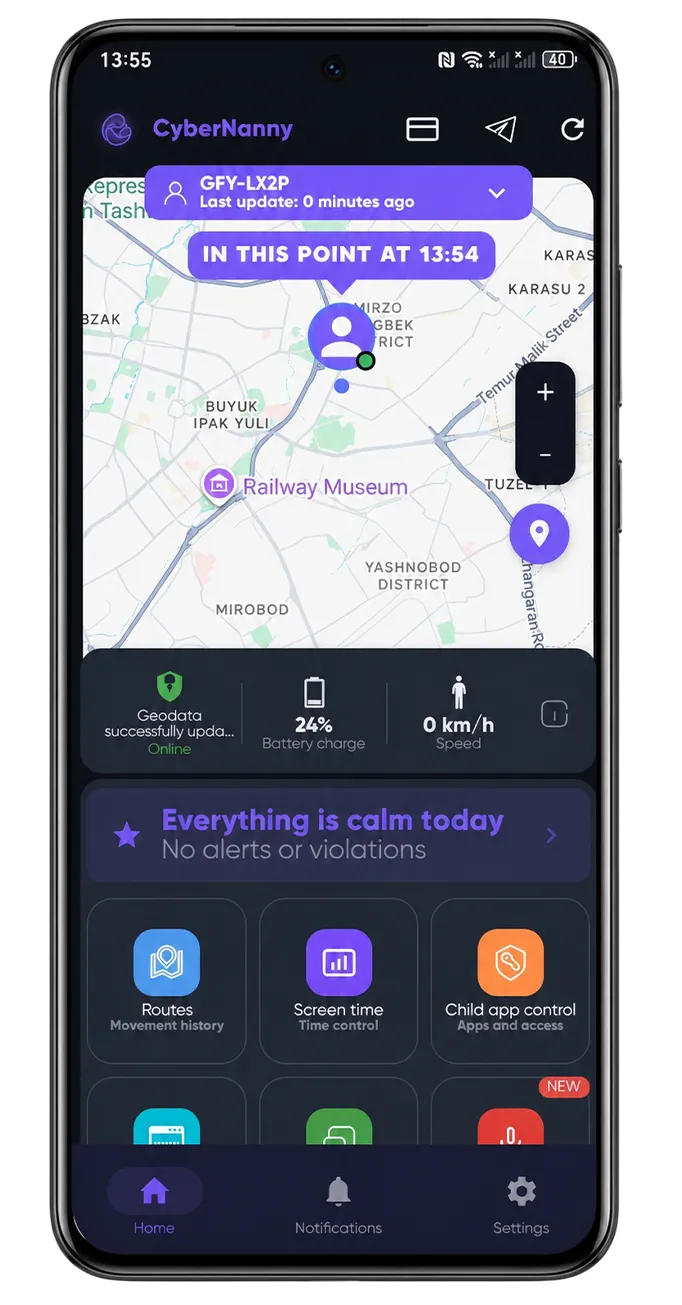
Installation mirrors Android, but one thing matters before you start: iOS restricts what third-party apps can do, and some features are unavailable to every parental control app on iPhone, whatever the marketing says.
What works on iPhone
- Location, history and geofence alerts
- Screen time and schedules
- Basic app restrictions
- Web filtering
- Family chat
What does not
- Message content — iOS does not allow third-party apps to read messages
- Ambient sound — the system does not permit background microphone use
If you need those, your child's device should be Android — your own phone can still be an iPhone.
Installation
- Download CyberNanny from the App Store, choose Parent and register.
- Create a child profile with name and age.
- Install the app on your child's iPhone and choose Child.
- Scan the QR code from your dashboard.
- Set location access to Always in Settings → Privacy → Location Services.
- Install the management profile if prompted: Settings → Profile Downloaded → Install.
- Enable Background App Refresh in Settings → General.
If the map stays empty
Almost always the cause is location set to "While Using" instead of "Always". Check that first, then Background App Refresh and Low Power Mode. More in location troubleshooting.