
Back-to-School Parent Checklist: 5 CyberNanny Settings

The first weeks of September are the most nervous. A new route to school, new friends, a phone in hand all day, and you are at work seeing none of it. The good news: five settings in CyberNanny take most of that worry away. It takes about ten minutes, and after that the app does the work.
- School and Home geofences: an alert when your child arrives and leaves.
- After-school routes: where they were during the day, no interrogation.
- Screen time: the report first, then an agreement.
- AI Advisor and alerts: what matters comes to you.
- Family chat: "I'm out" without a call.
- Until September 30: 3 months of PRO for the price of one.
1. School and Home geofences
The most useful September setting. A geofence is a circle on the map: when your child enters or leaves it, you get a notification. Two zones cover almost the whole day. School tells you they made it and when they left after class, Home tells you they are back.
How to create one. Open your child's map in the parent app or in the web cabinet, choose Geofences and Add. Put the pin on the school building, give it a name and a radius, save. Make the second zone for home. If your child goes to a club or sports practice, add a third one, it takes another minute.
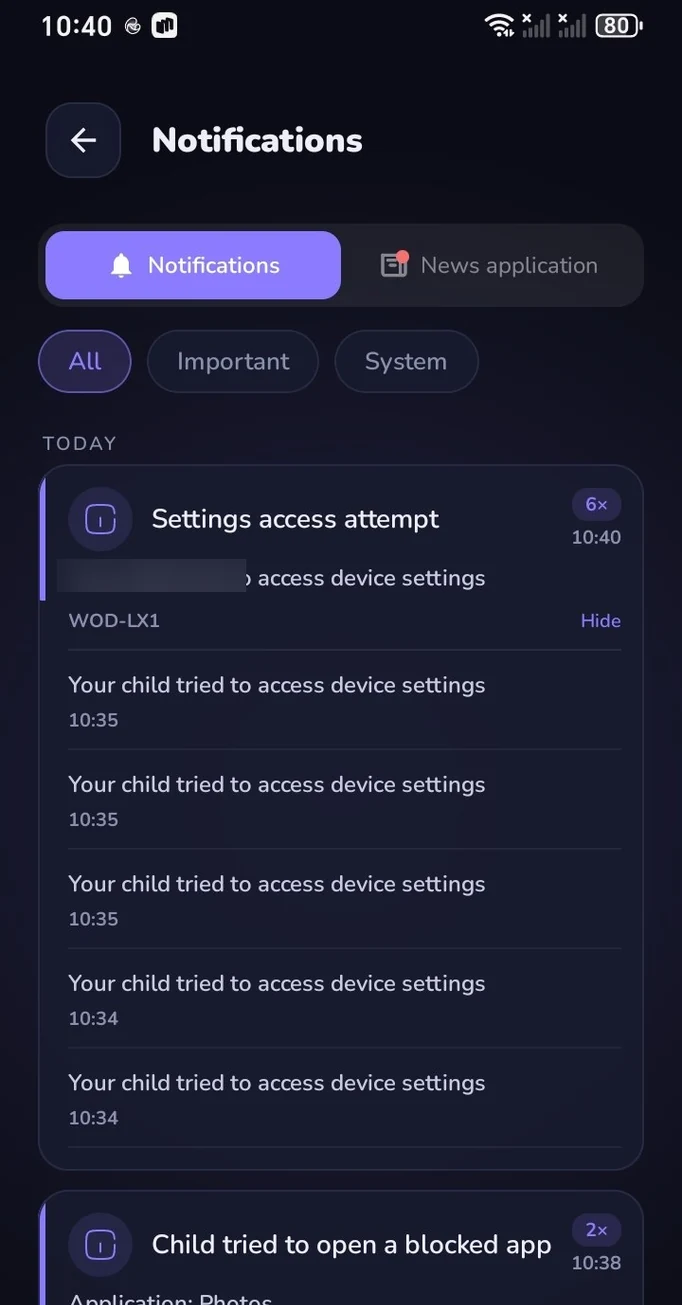
What the parent receives. Two or three short notifications a day: "Arrived at school, 8:12", "Left school, 13:35", "Arrived home, 14:50". No more calling at 8:15 to ask "did you get there?" and at 14:00 to ask "where are you?". If the usual notification does not come, that is your cue to open the map.
Why the radius should be a bit bigger than the building. GPS drifts in a city: between buildings, in a gym or a basement the dot can jump 30-50 meters. If the circle hugs the school walls, the phone will "leave" and "enter" several times during a lesson and you will get a pile of false alerts. Set the radius to include the schoolyard and the nearest street, usually 150-200 meters. Then the alert comes once and means something.
2. After-school routes
A geofence answers "did they get there or not". The day's route answers a different question: what happened between school and home. In September this matters more than usual, because the route is still new and friend groups are only forming.
Where to look. In the parent app open the Routes section, in the web cabinet it lives on the map screen. Pick a day and your child's path is drawn as a line with timestamps: left home at 7:40, at school from 8:10 to 13:30, forty minutes at a spot next to the school, home at 14:50. The picture reads in ten seconds. The live dot on the map is in the free plan, the Routes section is part of PRO.
How to tell your child went somewhere they should not have. Do not look for deviations in every single day, look for a pattern. One stop at a shopping center is normal. Forty minutes every Tuesday in the same courtyard you know nothing about is a reason to ask. Ask with curiosity, not accusation: "I see you often stop by the park after school, what is there?". That way routes stay a tool for peace of mind, not for interrogation.
3. Screen time on school days
In September the phone competes with homework and sleep. This is the only item on the checklist where you should look first and set things up second.
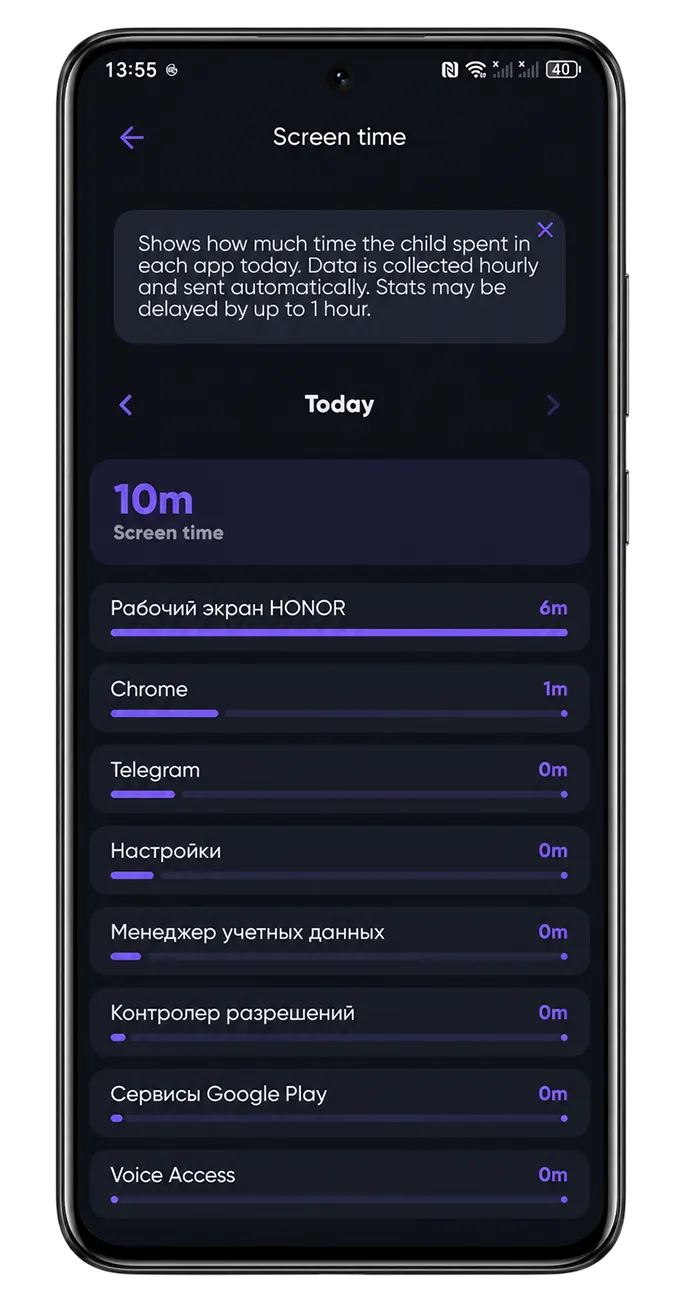
The app report. In the Screen Time section CyberNanny shows how long your child spent in each app per day and per week. What to look at: total time on weekdays compared to weekends, what sits in the top three lines, and how much screen time falls in the hour before bed. Often it turns out the problem is not "the phone" but one specific game or late-night messaging.
How to agree instead of banning. Show your child the report and propose a rule, not a punishment: games one hour on weekdays, videos one hour, messengers and school apps unlimited, the phone sleeps at night. Then set limits for specific apps and a schedule for lessons and sleep in the app. When a limit runs out the app closes on its own and your child sees a clear message and the time left. Arguing with a rule agreed in advance is much easier than arguing with a parent every evening. If you are unsure about the numbers, ask the AI Advisor what is normal for your child's age.
4. AI Advisor and alerts
You do not need to read your child's entire message history, and you should not. You need to learn in time about the things that are really dangerous. Two features handle that.
Alerts. The AI reviews messenger chats and sends you a notification when it sees signs of bullying, contact with an unknown adult, dangerous challenges, talk about drugs or self-harm, or attempts to extract money. Ordinary chats with classmates are none of your concern, you only get a risk signal with a short explanation.
AI Advisor. It is a chat where you ask in plain words: "my son has become withdrawn after school, what do I do", "my daughter is messaging until two in the morning". The Advisor does not answer with generic phrases, it relies on the data in your cabinet: routes, screen time, new contacts, browser history and search queries. The answer is concrete steps for your child's age and situation.
How to react calmly. An alert is not a verdict, it is a reason to look closer. First open the context, then ask the Advisor how to start the conversation, and only then talk to your child. "I noticed an adult you do not know is messaging you, tell me about it" works better than "I read everything". Full alerts and the Advisor without limits are part of PRO.
5. Family chat
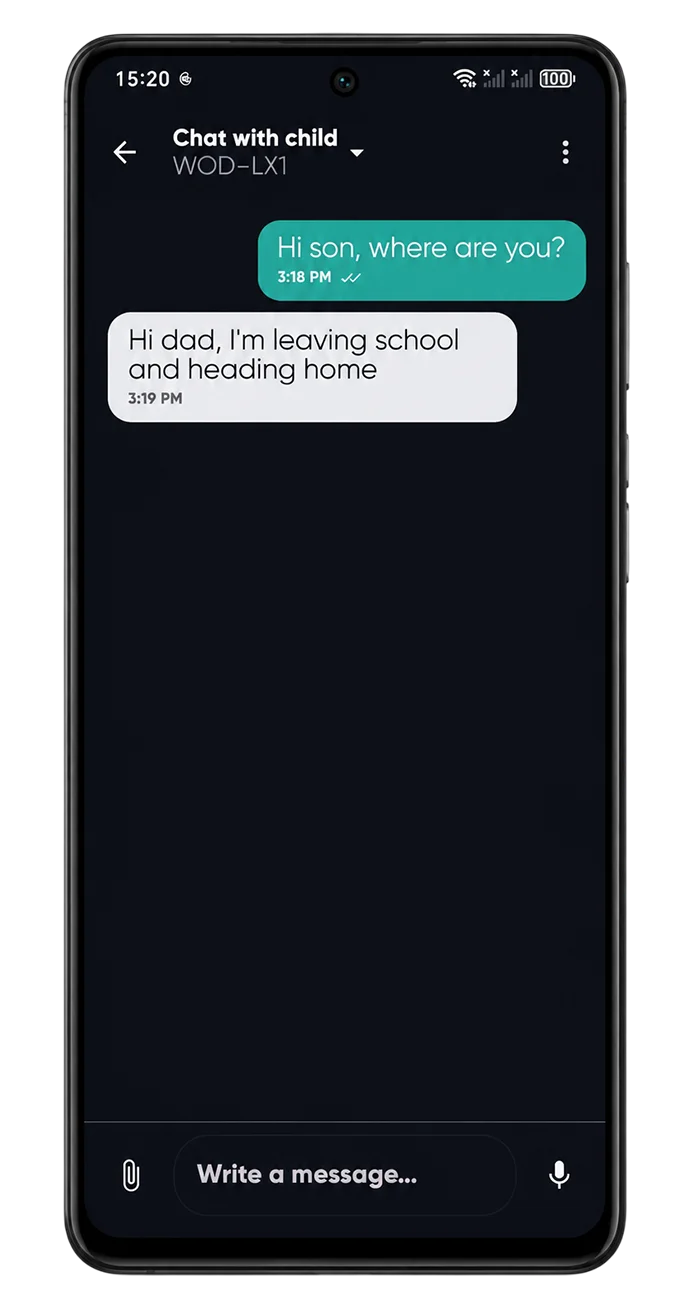
The simplest setting and the one most often skipped. Inside CyberNanny there is a chat between parent and child: text, voice messages, photos, videos, message history. It is free.
Why use it when regular messengers exist. First, the agreement lives there: "text me 'out' when you leave school" becomes a habit within a week, and there is no need to call anymore. Second, your child can send their location with one button. Third, an app your child uses to talk to the family does not feel like surveillance, so they do not try to delete it. Add the chat widget to the home screen of your child's phone so that "I'm out" takes two taps.
Summary: ten minutes for a calm September
- Two geofences, School and Home, with a radius a bit bigger than the building.
- A look at routes every few days: patterns, not single cases.
- The app report, then limits and a schedule you agreed on.
- Alerts on, the AI Advisor within reach.
- Family chat with the rule "text when you are out".
Until September 30: 3 months of PRO for the price of one
A back-to-school offer is on: when you choose the 3-month plan in the Subscription section, the price is the same as one month. The discount is applied automatically and runs until September 30, 2026. PRO includes the Routes section, full alerts and the AI Advisor without limits. If you are on the free plan, this is a good moment to try everything at once for the first term.
Install CyberNanny for free
Map, geofences, screen time and family chat in the free plan. Until September 30, 3 months of PRO for the price of one.
Install the appFAQ
Should I tell my child that CyberNanny is on their phone?
Yes, be open about it. Explain that the app is there for safety: you can see they made it to school and you can reach them quickly. Kids accept rules like this when they hear them in advance, and the family chat makes the app useful for the child too.
Do geofences work on an iPhone?
Yes, the map and geofences work on both Android and iPhone. On an iPhone, give the app location access set to Always, otherwise arrival and departure alerts will be delayed.
How many alerts will I get per day?
With two geofences, usually two or three: arrived at school, left school, arrived home. If the radius has some margin, false alerts are rare.
Which parts of the checklist are free?
The live map, geofences, the screen time report with limits and the family chat are in the free plan. The Routes section, full alerts and the AI Advisor without limits are part of PRO.
How do I get 3 months of PRO for the price of one?
Open the Subscription section and pick the 3-month plan. Until September 30, 2026 it costs the same as one month, the discount is applied automatically.